
Changelog
The latest updates from Marginal Improvements
Introducing bookings: Schedule and manage appointments with clients
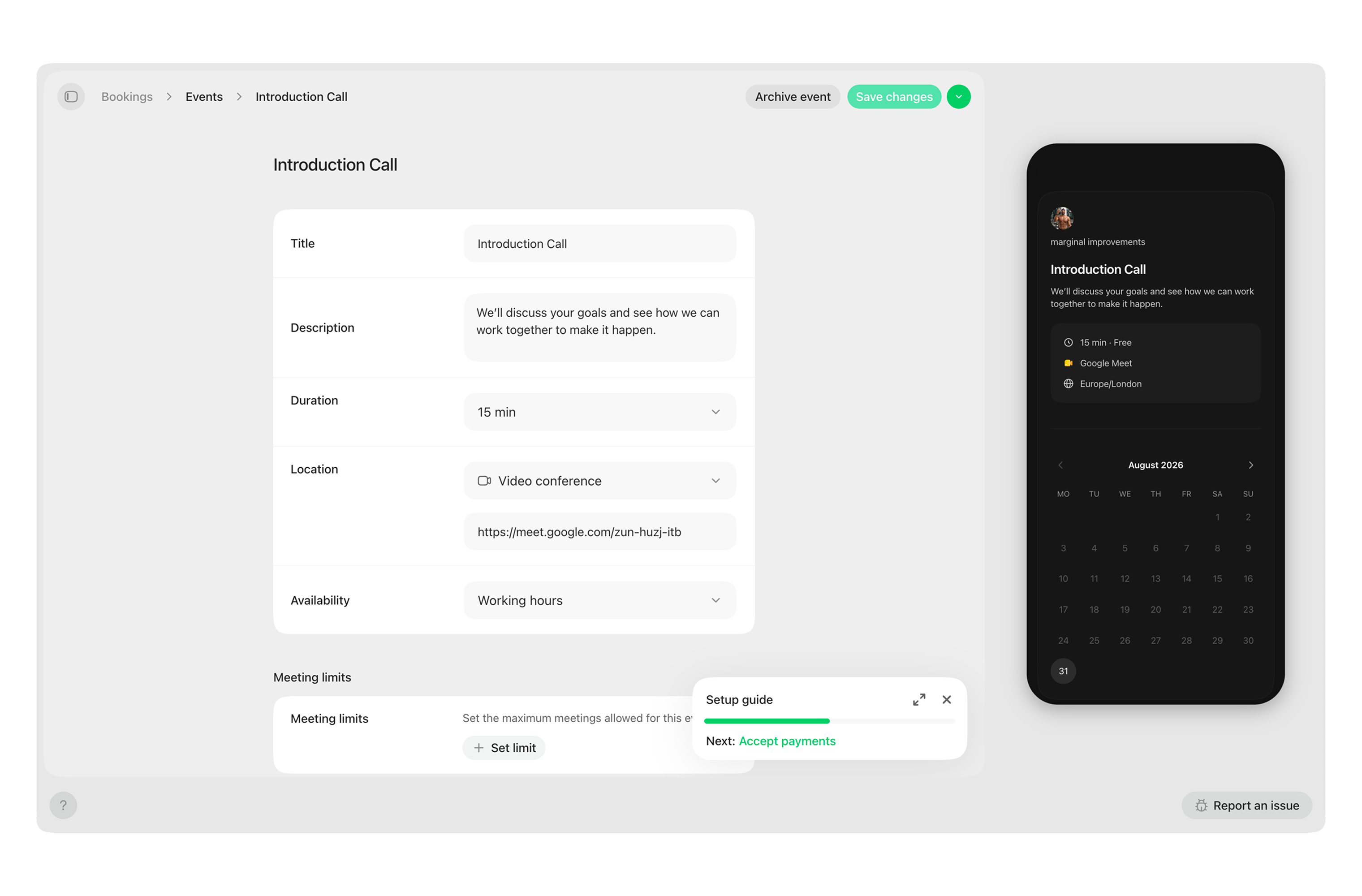
Coaches can now take appointments end to end, from setting weekly availability and publishing a bookable session to letting clients pick a slot and confirm. Every step of that flow, plus sign-in and messaging, now sends a properly designed email instead of a bare notification.
Setting availability and taking bookings
Set the weekly windows you’re bookable in, share a public booking link, and let clients pick an open time and confirm, no back-and-forth. Cancelling or marking a booking as a no-show now notifies the client automatically with a rebook link, and a daily job emails anyone with a confirmed booking coming up soon.
New designs for every transactional email
Every transactional email, including booking confirmations, reminders, cancellations, sign-in codes, welcome emails, new-device alerts, issue reports, form responses, and new messages, was rebuilt from scratch on one shared type scale, spacing, and colour system, with a live-reloading internal tool for iterating on templates against real content.
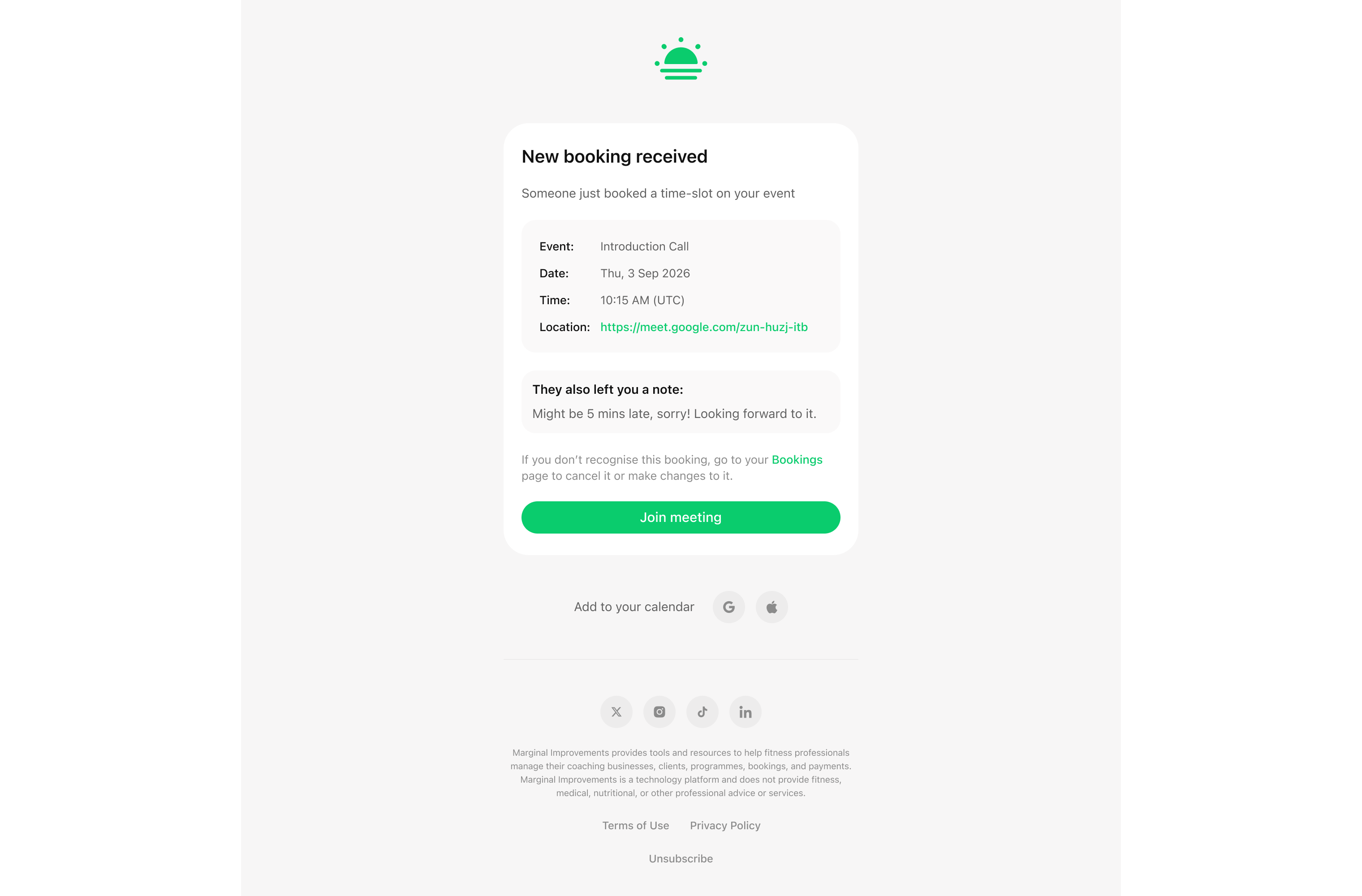
The email a coach receives when a client books a session.
Introducing Link in bio: A personalised public page for your business
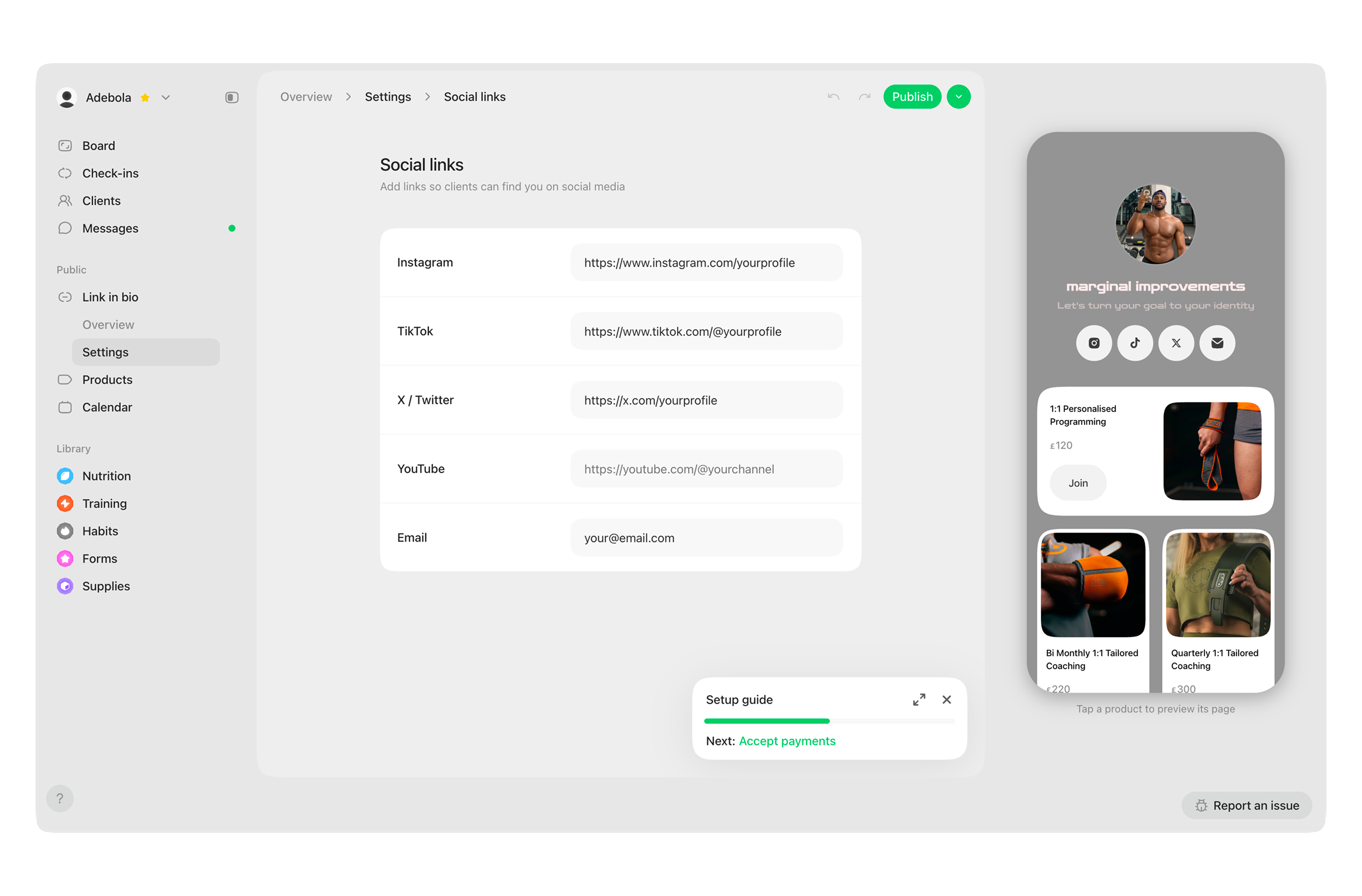
Every coach now has a public page at their own link, listing what they sell or offer, with a dedicated page for each item. It is fully customisable, so it can look and feel like your business, not a generic template.
Choose how each item looks and how visitors find it
Every item gets its own page, with testimonials, a copy-link button, and an about-you card with your bio and social links. Pick a card layout for each item (Grid, Portrait, or Landscape), organise items into tabs, and reorder them with a live preview of how the change looks on the page.
Match your page to your brand
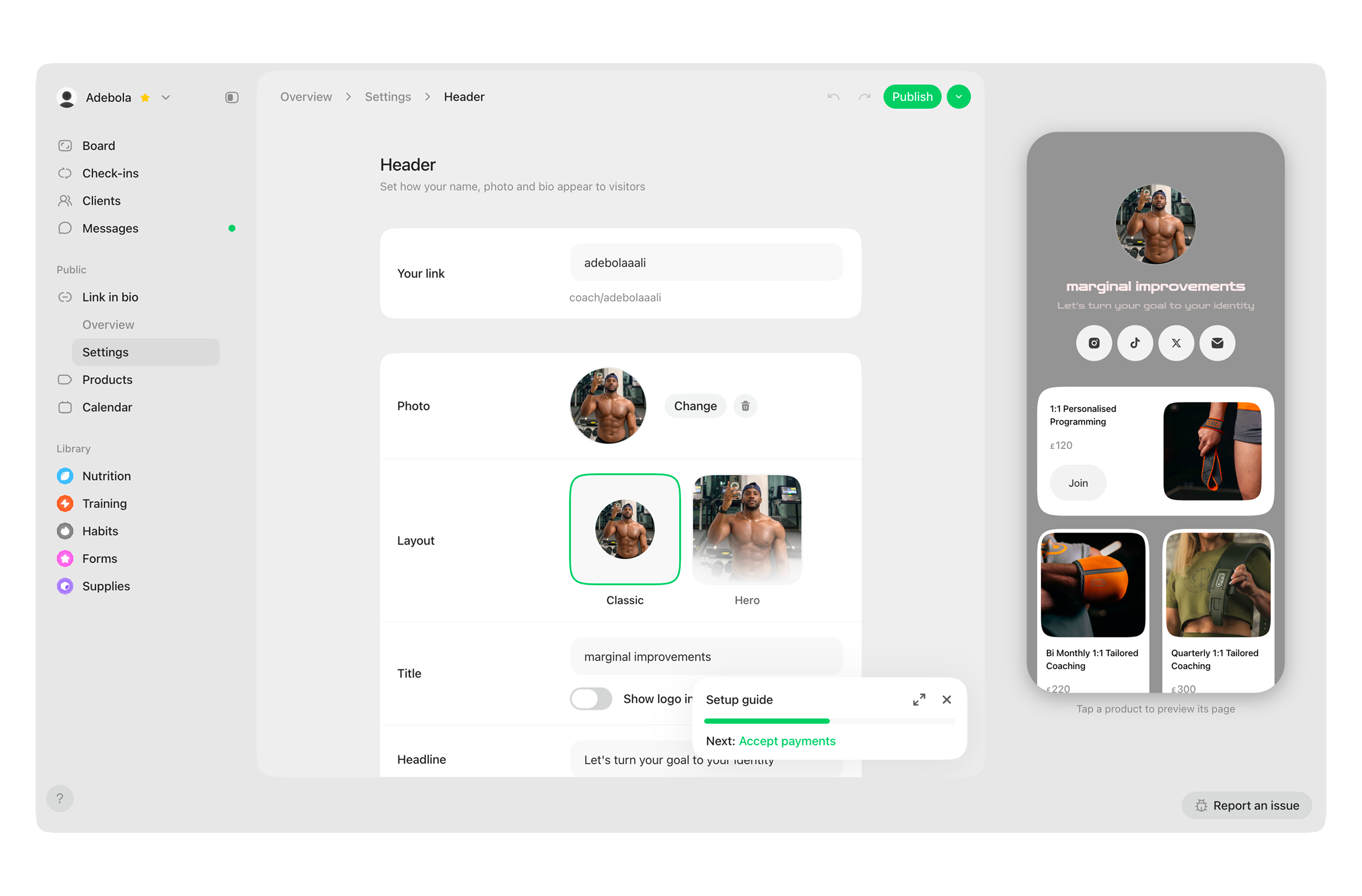
Choose between a Classic or Hero header layout.
Set your own background, card, button, and text colours, pick from 14 fonts, and choose a header style: your logo, or a full-bleed hero photo. If you are not sure where to start, Match my photo reads the colours in your uploaded photo and suggests a full theme for you.
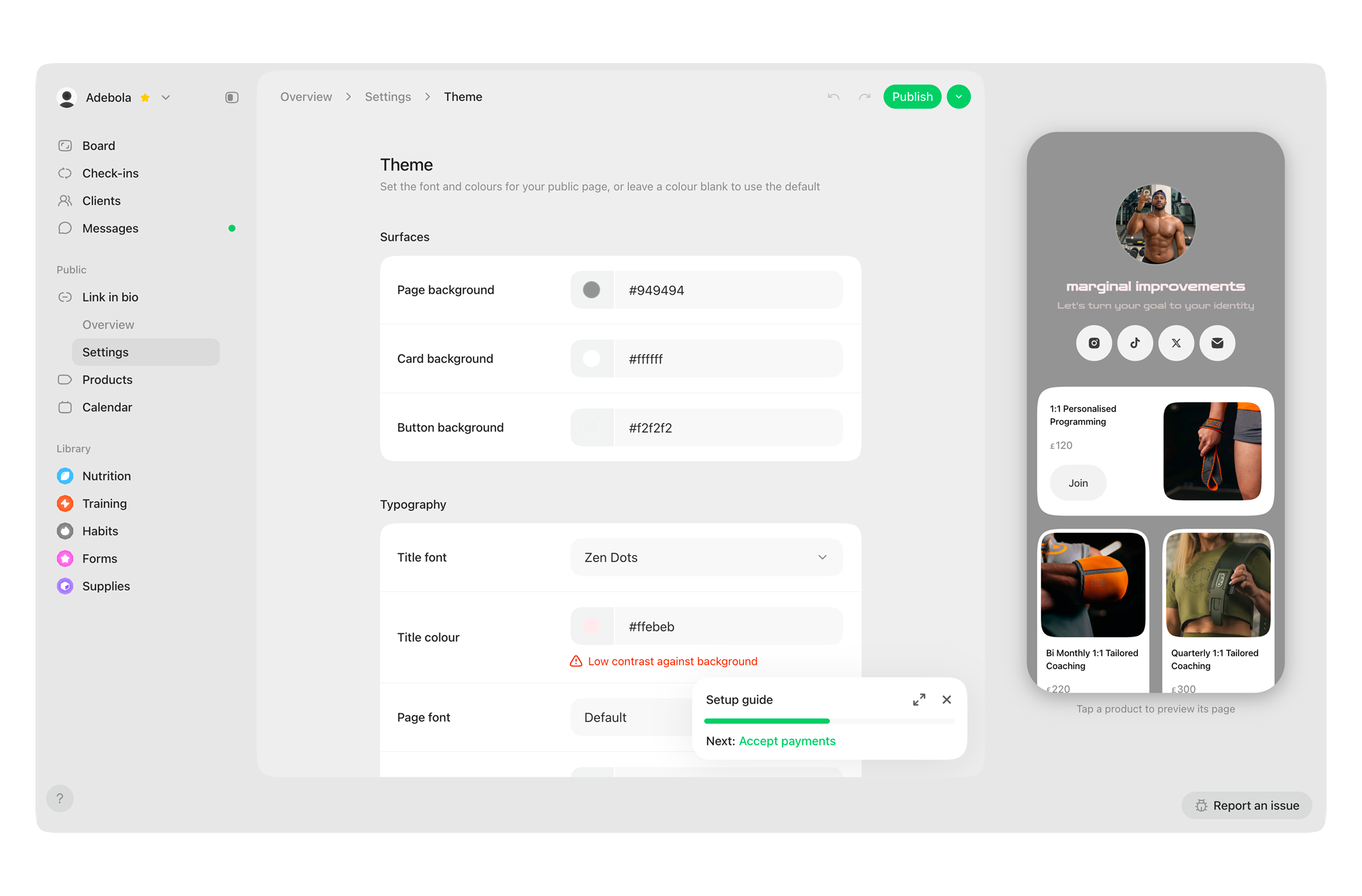
Set page, card, and button colours, with a live contrast check.
Introducing issue reporting: Report and track problems from inside the app
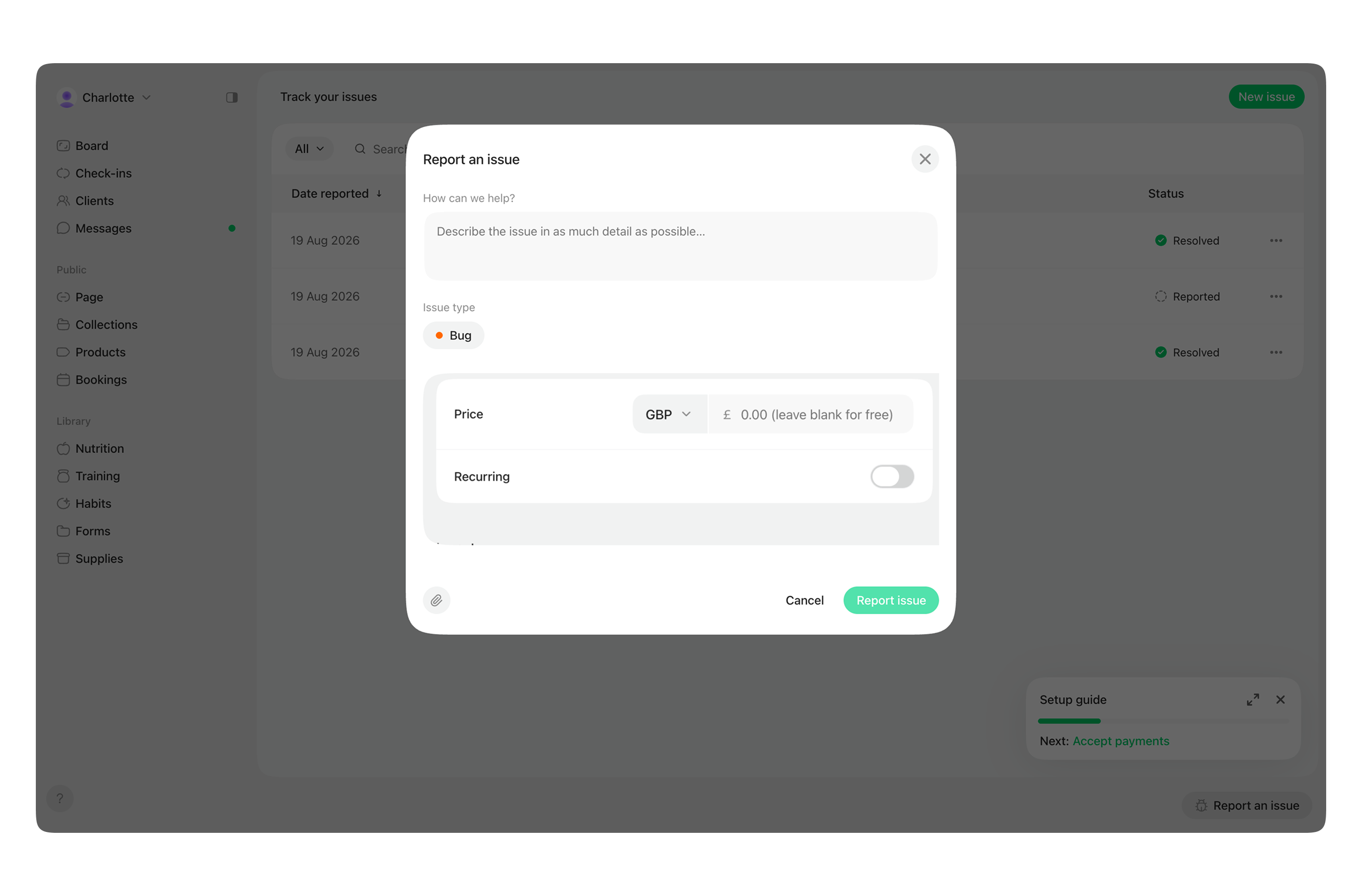
A Report an issue button is now available from every page in the app, so you can flag a bug, ask for something new, or leave feedback without leaving what you are doing.
Report a bug, a request, or anything else
Describe what happened, pick an issue type (Bug, Suggested improvement, Feature request, or Other), and attach one or more screenshots if it helps explain the problem. You will see a confirmation as soon as it is submitted.
Track every issue in one place
Every issue you report is listed on its own page, with its date, title, and status (Reported, In progress, or Resolved). Open an issue to see the full description, your screenshots, and any comments left by the team.
Marginal Improvements